
Step by Step Guide in using Dahua DMSS Mobile App in 2026
By Techcom Engineering Pte. Ltd.
Published: January 22, 2026 at 01:48 pm

Ready to get your Dahua CCTV system?
Explore our full range of Dahua CCTV cameras and find the perfect solution for your home or business. Click the link below to browse our products:
Click here to view available Dahua CCTV Cameras
Dahua DMSS is a powerful mobile surveillance app designed for seamless remote security management. With DMSS, users can enjoy real-time remote monitoring, smooth video playback, instant push notifications, device initialization, and full remote configuration — all from a single interface. The Dahua DMSS app supports a wide range of Dahua devices, including access controllers, alarm hubs, video doorbells, NVRs, XVRs, VTO intercoms, and IP cameras. Once logged into your DMSS Dahua account, you can also access cloud services such as cloud upgrades, ensuring your system stays secure, updated, and performing at its best.
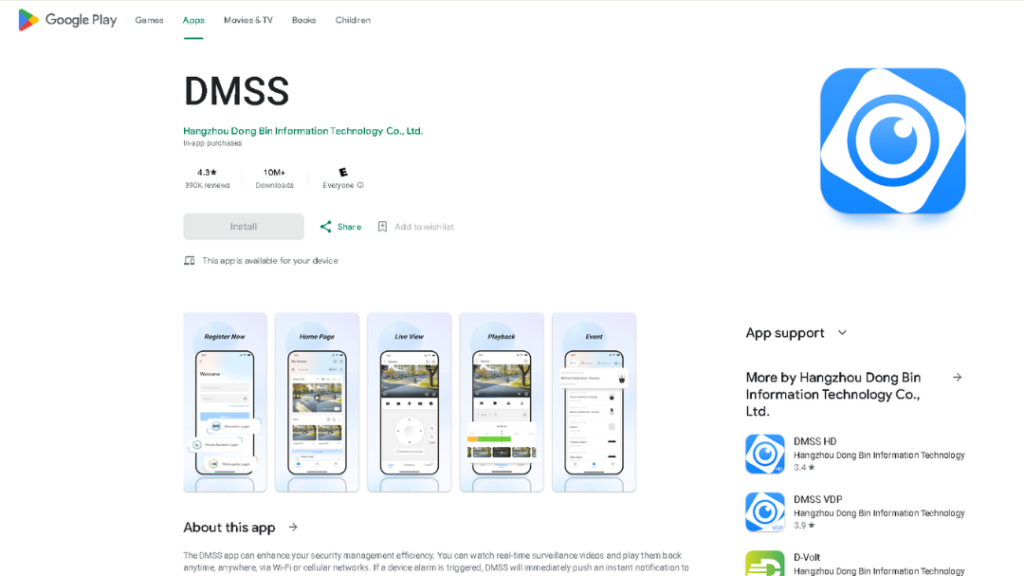
Step 1: Download the Dahua DMSS app from the App Store (iPhone) or Google Play Store (Android).
First, download the Dahua DMSS app. If you are using an iPhone, go to the App Store. If you are using an Android phone, go to the Google Play Store.
You may click the links below to get started:
• DMSS on App Store
• DMSS on Google Play Store

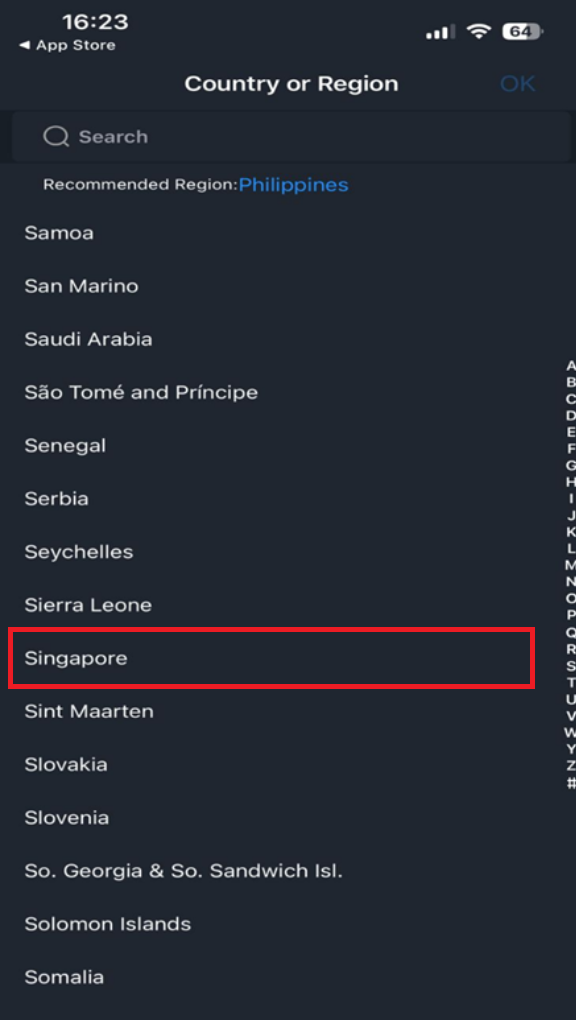
Step 2: Open the DMSS app and select your country or region.
After installing the Dahua DMSS app, tap the app to open it. You will be prompted to choose your Region. Simply select the country where you currently live. This helps the app connect your Dahua device more smoothly using the P2P network.
Don’t worry — if you move to another country in the future, you can change this setting anytime in the app.
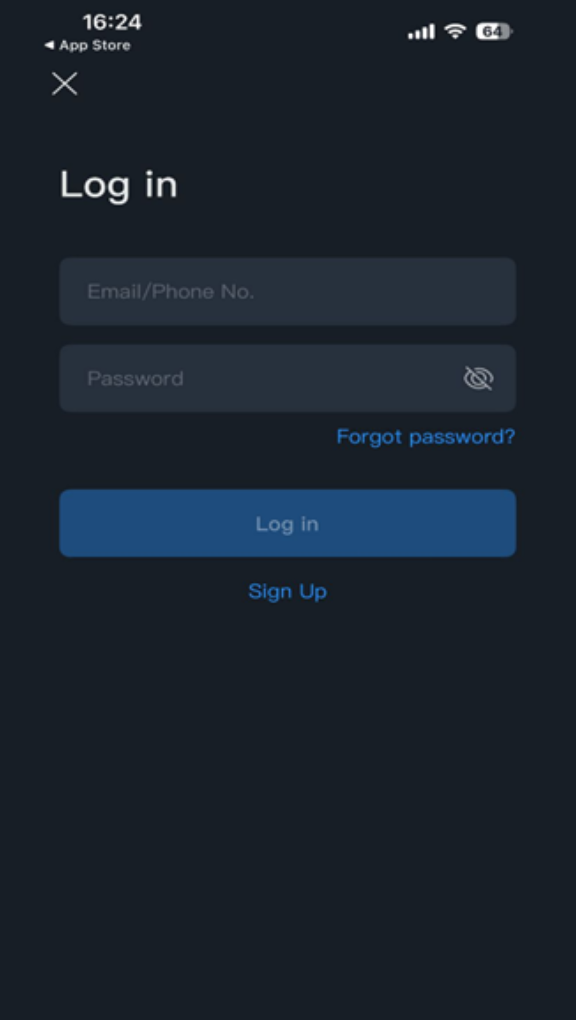
Step 3: Log in or sign up for a DMSS account.
If you already have a DMSS account, tap Login and enter your email or mobile number and password to sign in. If this is your first time using the app, tap Sign Up or Register to create a new account, then follow the on-screen instructions to complete your registration.
Once you’re logged in, you can proceed to add your Dahua device and start using the app.
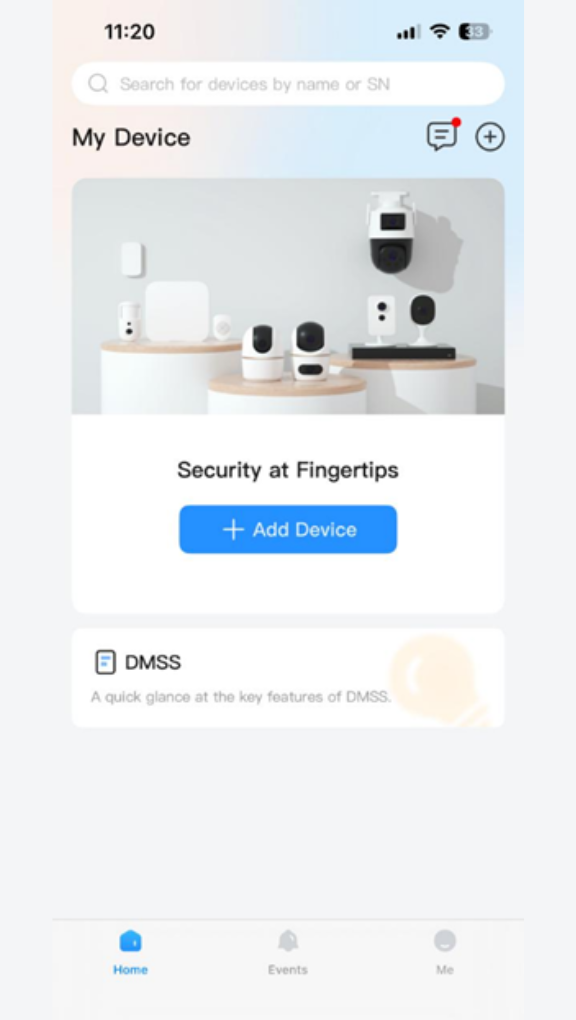
Step 4: Add your Dahua device to the DMSS app.
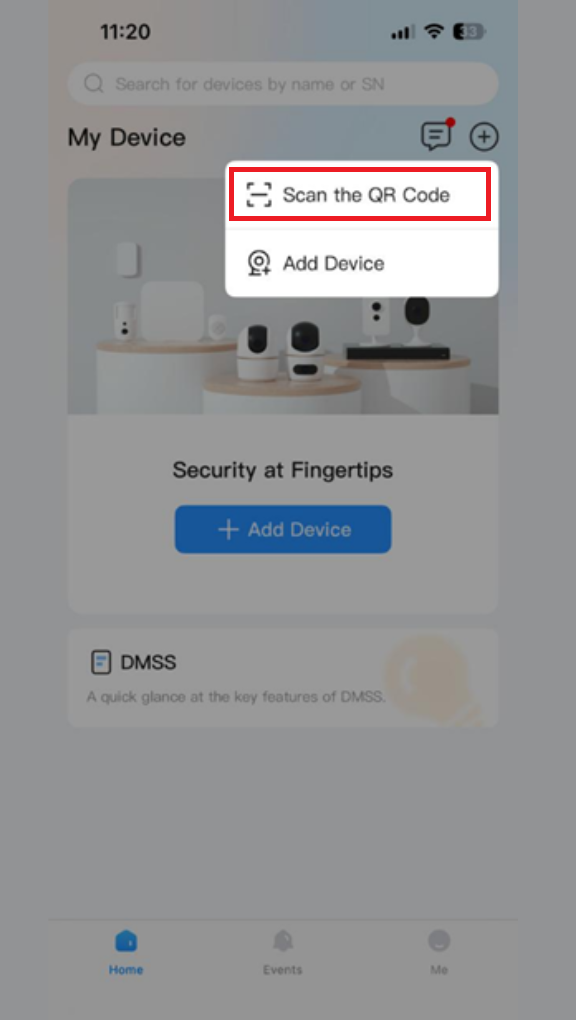
Once you’ve logged in to the DMSS app, the next step is to add your Dahua device so you can start monitoring it. To do this, refer to the image below and tap the “+” icon at the top-right corner of the screen, or click the + Add Device button in the middle of the screen to begin adding a new device.
You will then see several options for adding your Dahua device, including SN / Scan (QR Code), IP / Domain, or Online Search. Choose the method that works best for your installation or follow the instructions provided by your installer or device supplier.
If you purchased your Dahua IP camera, XVR, NVR, or HDCVI camera from us and are unsure which method to use, don’t worry — feel free to contact us for assistance, and we’ll be happy to guide you through the setup.
Step 5: Add your Dahua device by QR Code Scan.
If you choose to add your Dahua device using the Scan option, tap “Scan the QR code” in the DMSS app. Then, use your phone’s camera to scan the QR code located on your Dahua device or its packaging.
Once scanned, follow the on-screen instructions to complete the setup.
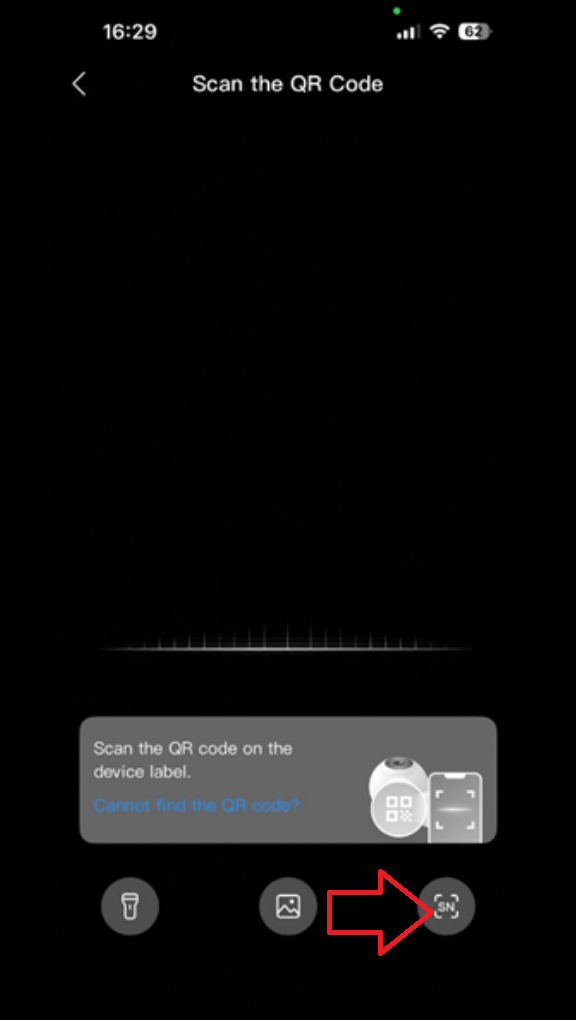
Step 6 (Optional): Add the device using the SN number
If you don’t have the QR code, you can add your Dahua device using its SN (Serial Number) instead. Tap [SN] in the DMSS app, enter the device’s serial number (usually found on the device label or packaging), and follow the on-screen instructions to complete the setup.
Note: This step is optional — you only need it if the QR code is unavailable.
Need expert help setting up your Dahua devices?
Our team is ready to assist you with installation, configuration, and troubleshooting to get your system up and running smoothly.
Click here get Professional help in configuring your Dahua Devices.
Step 7 (Optional): Enter the Device Serial Number
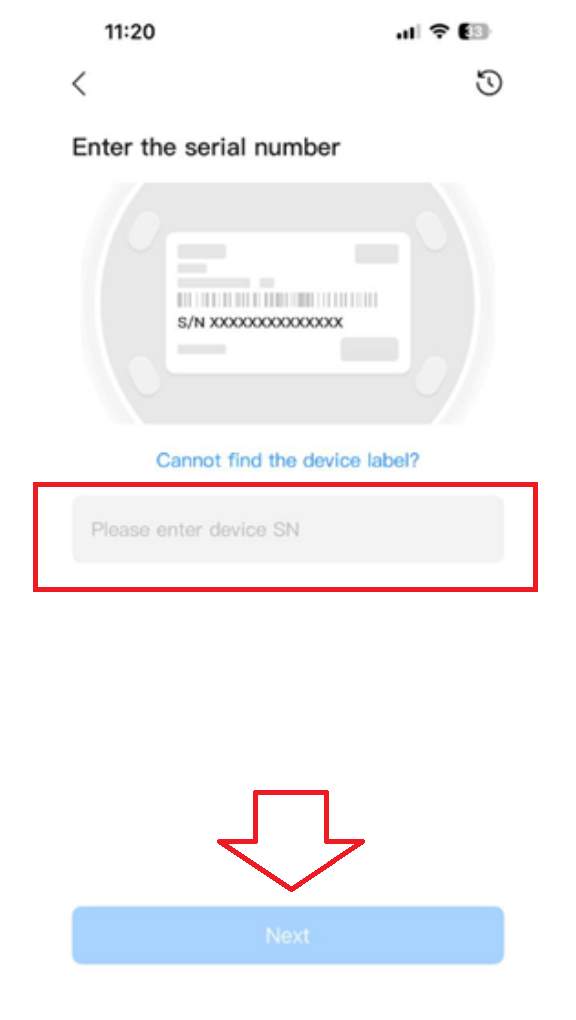
If you don’t have a QR code for your Dahua device, you can add it using the SN (Serial Number) option. To do this, tap [SN] in the DMSS app. You’ll see a field where you can enter the device’s serial number, which is usually found on the device itself, on its packaging, or in the user manual.
Carefully type the serial number exactly as it appears to ensure the app can locate and connect to your device. After entering the number, tap Next to continue.
This step is completely optional — it’s only needed if the QR code is unavailable. Once completed, the DMSS app will begin connecting to your device, and you’ll be ready to proceed with selecting your device type and configuring it for live view and playback.
Step 8: Choose your device type
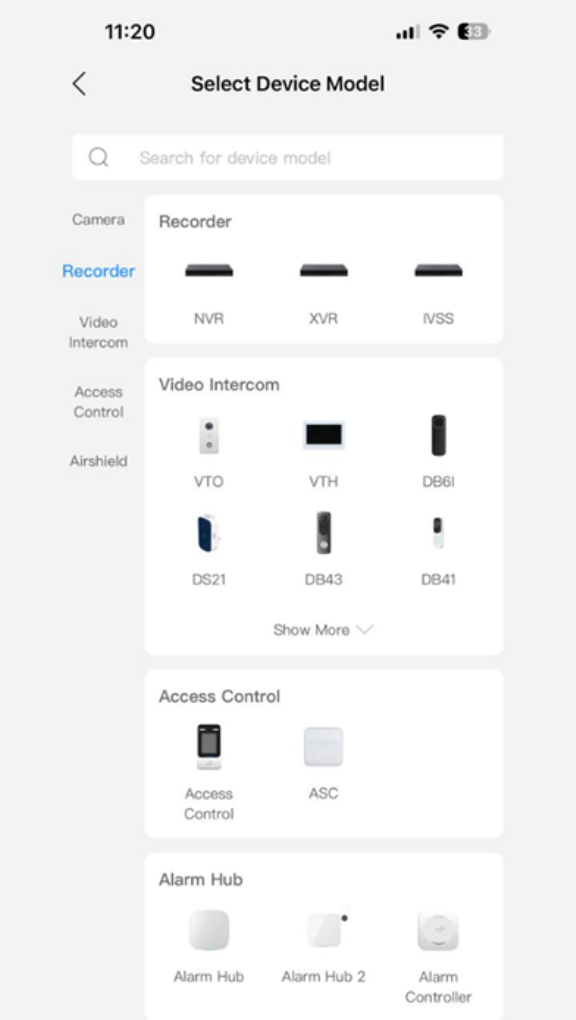
Select the correct type of Dahua device you want to add in the DMSS app. Options include IP Camera, NVR, or DVR/XVR. Make sure to choose the type that matches the device you purchased to ensure proper setup and connection.
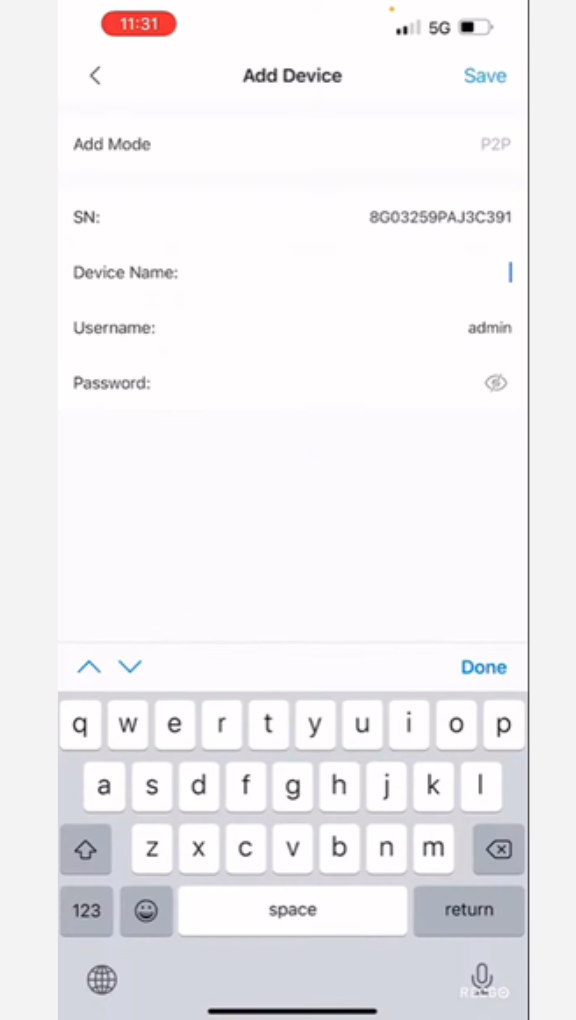
Step 9: Enter your Dahua device details
Next, enter the device name, username, and password for your Dahua device. The device name can be anything you like — choose something that helps you easily identify it. Make sure to enter the username and password exactly as set on your device for a successful connection.
Exploring DMSS Features
Now that your Dahua device is successfully added, you can start exploring the DMSS app and its features. Here are some things you can play around with:
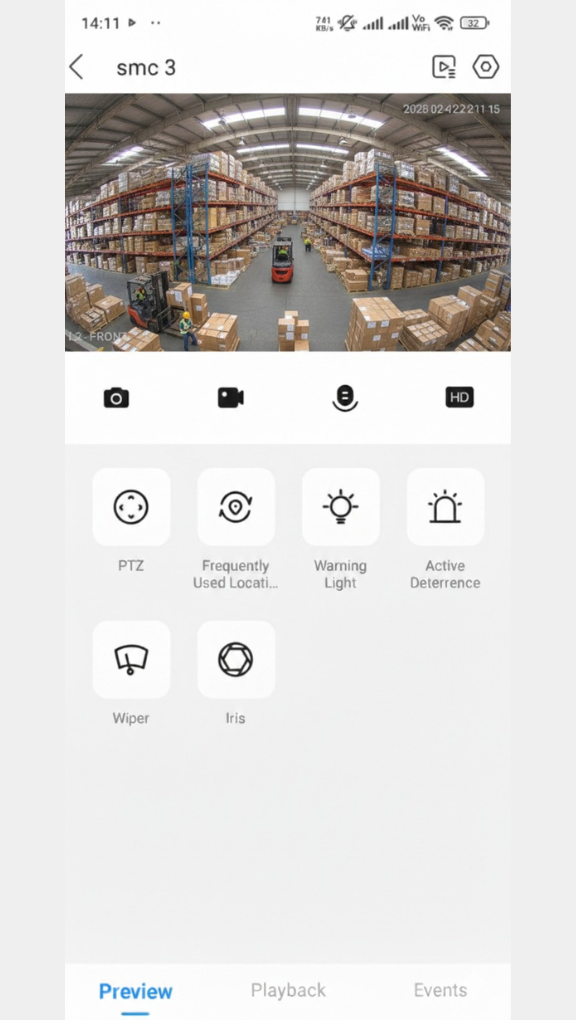
1. Live View Settings
In the Live View screen, tap the icon circled in the image below to switch between main stream and sub stream — this lets you choose between fluent transmission and a clearer image. You can also:
• Take screenshots
• Save video clips
• Close the live view
2. Watch Recorded Footage
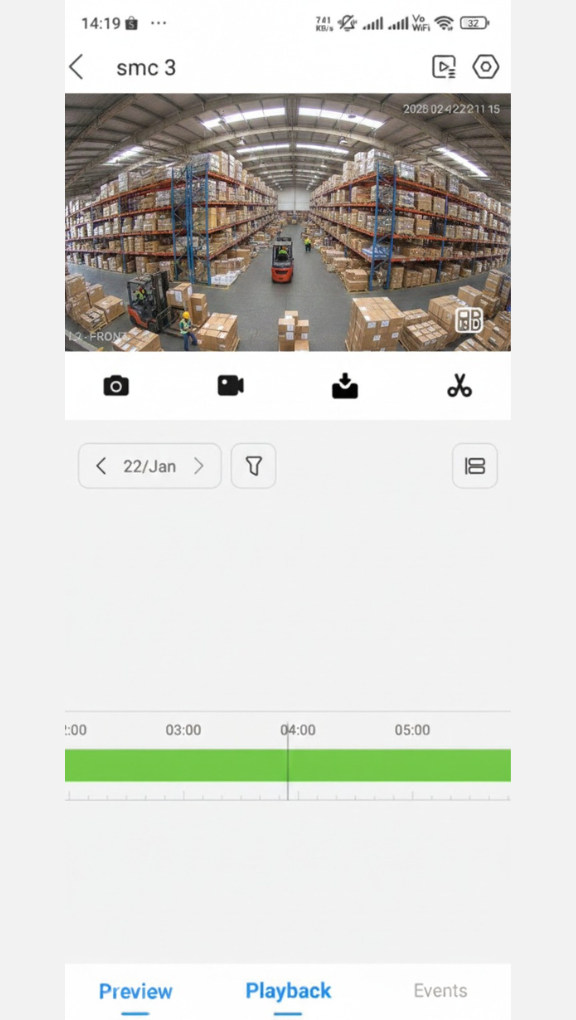
To review and replay previously recorded videos from your Dahua device using the DMSS app, open the app and access the playback feature from the main menu. This allows you to go back in time and view any important events captured by your cameras.
• Go to the main menu of the app.
• Tap the Playback icon located at the top left of the screen (as shown below).
Once in the playback interface, you can browse through all available footage, select the camera you want to view, and start watching recordings easily. This feature makes it simple to check events whenever you need and ensures you never miss any important details.
3. Select Time and Date for Playback
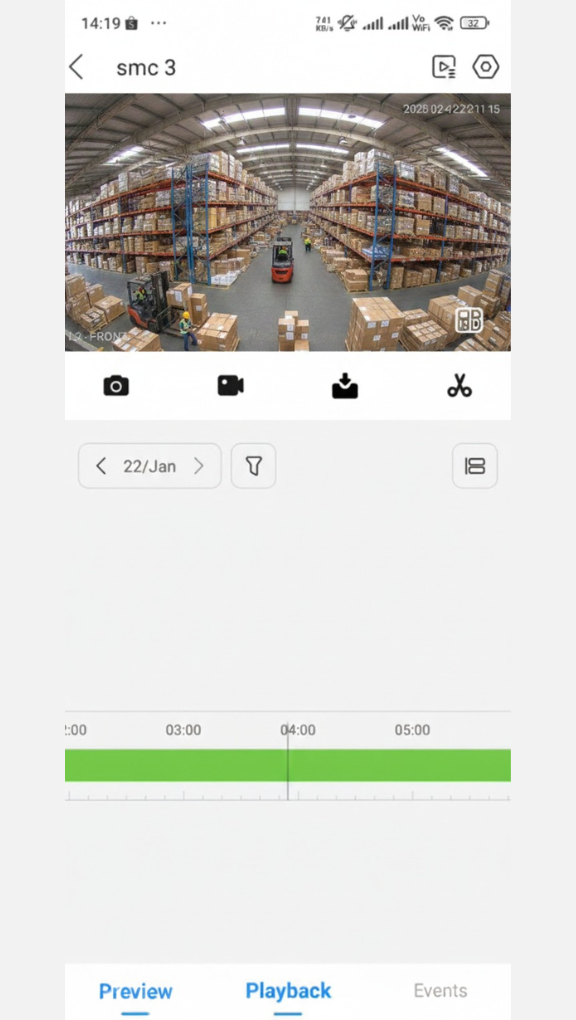
To watch specific recorded videos from your Dahua device in the DMSS app, you need to select the exact time and date of the footage you want to view. This helps you quickly find the events you’re looking for without scrolling through all recordings.
• Open the DMSS app and go to the main menu.
• Tap the Playback icon at the top left of the screen (as shown below).
• Choose the camera you want to view.
• Select the date and time for the video you want to replay, then tap OK to start playback.
By selecting the correct date and time, you can quickly access the footage you need and review it in detail, making it easy to monitor events or check for important moments.

4. Playback Controls
While watching recorded footage in the DMSS app, you have several controls to help you review your videos efficiently and conveniently. These controls allow you to navigate through recordings and manage clips exactly how you need.
• Fast forward or rewind: Quickly move to the part of the video you want to see without watching the entire recording.
• Export clips: Save important video segments to your device for future reference or sharing.
• Watch in full screen mode: Expand the video to full screen for a clearer and more detailed view of the footage.
These playback tools make it easy to review events at your own pace and ensure you never miss any important details captured by your Dahua device.
Conclusion:
Setting up your Dahua devices with the DMSS app is quick and easy when you follow the steps above. Once your devices are added, you can enjoy live monitoring, video playback, notifications, and full control of your security system right from your phone.
Whether you’re keeping an eye on your home, office, or business, DMSS makes managing your Dahua devices simple and convenient. Take some time to explore the app’s features, adjust settings, and familiarize yourself with playback controls to get the most out of your system.
If you’re ready to expand your setup, check out our wide range of Dahua CCTV cameras, or reach out to our team for expert assistance with installation and setup.


